
This tutorial will show you how to set up a JetHost PRO email account on The Bat!
We will be using a test email account email@yourdomain.com. Of course, you will have your own email address so substitute that in the appropriate places.
NOTE: Before proceeding, make sure you have a mailbox created.
Run The Bat! application, go to Account menu and click New: 
2. Enter the following settings into the corresponding fields:
- Your full name: the name of your account in The Bat!
- E-mail address: your full email address
- Organization (if any): your company name if applicable
- Password: your email account password
NOTE: if this is your first email account setup in The Bat! you will be forwarded to this window at once. 
Once done click OK or Advanced.
3. Make sure you have inserted the following settings into the corresponding fields:
- Outgoing (SMTP) server address: smtp.stackmail.com (Port 465 / SSL)
- My SMTP server requires authentication for sending mail should be checked.
- Incoming mail server address: imap.stackmail.com (Port 993 SSL) or pop3.stackmail.com (Port 995 SSL)
- User name: your full email address
Do not forget to select the corresponding protocol you wish your email account to be configured via IMAP orPOP3: 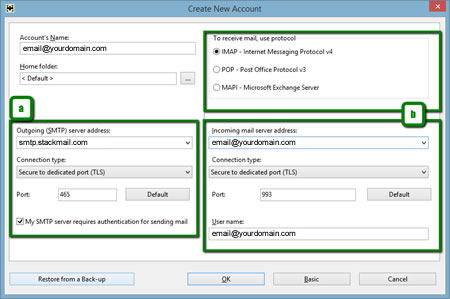
Once done click OK.
That's it!